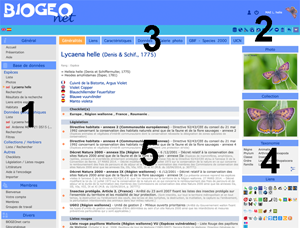
The navigation in BIOGEOnet is organized according to 5 axes which are activated or modified according to the specific display of the pages:
1. The left column menu divided into 4 parts: General, Database, Members and Miscellaneous. The 'Database' sub-menu gives access to the core of the system, namely the display and management of species lists, geographical data (observations) and collections. In this menu also the current selections 'species', 'observation' and 'collection' (sel) appear. An orange arrow indicates the active entry in this menu.
2. The toolbar at the top right of the screen is specific to the page displayed. This allows you to perform actions or open other pages related to the active page. A tooltip is available for each button on the bar by moving the cursor over it. The button at the far right, shown by a left arrow, returns to the previous page.
3. Tabs at the top can appear on some pages. These provide access to the sub-parts of the current page.
4. The frame(s) to the right of the active page, besides the display of additional information, can give access to certain actions (eg sorting) or to other pages in relation to the displayed content.
5. The links or buttons within the current page.
Tips: Often on the pages displaying a data list, the chip () ppreceding each line allows direct access to the corresponding element. On pages with a toolbar containing more than one button, a button at the far right, shown by a down arrow, allows you to see in a pull-down menu all tooltips on the toolbar.
Select a species
To search for and / or select a species, two main possibilities are proposed:
1. Deploy and select from a taxonomic tree (Menu: Database -> Species -> List).
This tree has 7 levels: kingdoms, phyla, classes, orders, families, genera and species. It is a pragmatic classification based on the taxonomy of living beings. The tree unfolds by clicking on the + or - in front of the names of the taxa. The selection of a species is made by clicking on its name.
2. Search directly in the database (Menu: Database -> Species -> Search).
The form allows to introduce one or more criteria necessary for research. The search can be done on a part of a name. The result of the search is kept in memory and can be accessed at any time via a new entry in the left menu titled 'Search results'.
The selected species appears in the menu on the left preceded by the words: sel. Two links are created: the first one under the title 'Species' to access the species record and the second under the title 'Geographic data' to list the data associated with the species.
Tip : To select a taxonomic level (eg a family), enter a part of the name of the taxonomic level in the 'Taxonomic level' box and select the taxon in the list of results. This selection can be used in the filter (right frame) of the 'List' page of geographic data.
Navigating stations and observations
The geographical data are organized in stations, characterized by different parameters (geographical or other). A list of species observations can be associated with each station. Several descriptors may be coupled to observations, eg. : date, collector, comments, number of specimens, plant cover, user-defined parameters, etc. To access the page: Database -> Geographic data -> List.
1. To select a station from the list, click on its name. A button illustrated with an eye will appear in the toolbar and allows the display of the station's plug. The currently selected station will also appear in the menu on the left preceded by the sel.
2. To filter the list of stations, use the frames to the right 'Filter' and 'Additional filter'.
If a species and / or a taxonomic level are selected (see box above) their names will appear in the 'Filter species' (frame 'Filter'). A selection by geographical area can be made by encoding 2 opposite vertices of a rectangle or by designating an area (square or rectangle ) on a map using the 'globe' button.
Tip : Some data are associated with a workgroup that allows you to have quick access to them.
Linked Stations, Stations, Substations
Three levels can be defined to locate species observations.
The station is a obligatory level. All species observations must be associated with a station.
Within the station, substations may be defined by geographical coordinates and associated with species observations. For example, a parcel of grassland represents the station and the substations are sampling plots (permanent squares) located within the perimeter of that station.
At the higher level, stations can be linked together to form a coherent group. This makes it possible, for example, to compile the list of observations for the whole group formed.
BIOGEOnet carto (mini map portal)
BIOGEOnet already allows to display and locate on the map the data contained in its database. Thus it is for example possible to locate a station with these substations, to realize a distribution map, etc. However, in order to make this experience more enjoyable, a mini map portal is also available: BIOGEOnet carto.
BIOGEOnet carto opens in an independent window. Here are some features:
* Display many different map holders and many superimposed maps. * Display map data in vector format (points and polygons). * Display data from the BIOGEOnet database directly from the various BIOGEOnet modules. * Editing outlines of Stations. * Pointing to your location. * Full screen view. * Etc.
For webmasters
To add a link to a search for a species in BIOGEOnet on your site:
https://www.biogeonet.ulg.ac.be/direct.php?page=goto&gr=genus name&sp=species name&ver=vernacular name.
The three names (in red) are optional and may be part of a name.
Help
Navigation (see image opposite): 1. Left menu = access to different parts of the site. 2. Specific toolbar for the current page. 3. Tabs = access to subparts of the current page. 4. Frames to the right specific to the current page. 5. Active page.
2026-04-30 - Valeur observation - Ajout dans la liste des valeurs des observations : Vérifié - relevé complet. Pour les observations comprises dans un relevé complet de la station ou de la sous-station.
2026-04-30 - Liste rouge - Ajout de la liste rouge 2022 des plantes vasculaires pour la Région wallonne
2023-12-06 - Station : {nom de la station} - Ajout d'un onglet Météo avec l'historique des 10 derniers jours de la météo de la station. Possibilité d'enregistrer les données météo pour les observations des 2 dernières années.
2023-07-31 - Ajout d'une nouvelle station - Dans le premier onglet, un lien dans le premier cadre à droite permet de réinitialiser le formulaire.
2023-07-28 - Ajouter des observations et Ajout de données : espèces - L'ajout d'observations via une liste d'espèces permet d'encoder directement le nombre d'individus, le recouvrement et le stade. Le reclassement de la liste garde le sélection en cours.











 1. The left column menu divided into 4 parts: General, Database, Members and Miscellaneous. The 'Database' sub-menu gives access to the core of the system, namely the display and management of species lists, geographical data (observations) and collections. In this menu also the current selections 'species', 'observation' and 'collection' (
 ) ppreceding each line allows direct access to the corresponding element. On pages with a toolbar containing more than one button, a button at the far right, shown by a down arrow, allows you to see in a pull-down menu all tooltips on the toolbar.
 1. To select a station from the list, click on its name. A button illustrated with an eye will appear in the toolbar and allows the display of the station's plug. The currently selected station will also appear in the menu on the left preceded by the
  2. To filter the list of stations, use the frames to the right 'Filter' and 'Additional filter'.
 Within the station, substations may be defined by geographical coordinates and associated with species observations. For example, a parcel of grassland represents the station and the substations are sampling plots (permanent squares) located within the perimeter of that station.
 At the higher level, stations can be linked together to form a coherent group. This makes it possible, for example, to compile the list of observations for the whole group formed.